

Tutorial for ROKU
Here's a tutorial to set up the IPTV app on Roku from scratch, Easy steps!
To run the Reflexsat IPTV service on your Roku, simply download ibo Player Pro App from your Roku Channel Store or Caste from your Smartphone to your TV.
Set up your Roku with ibo Player Pro App:
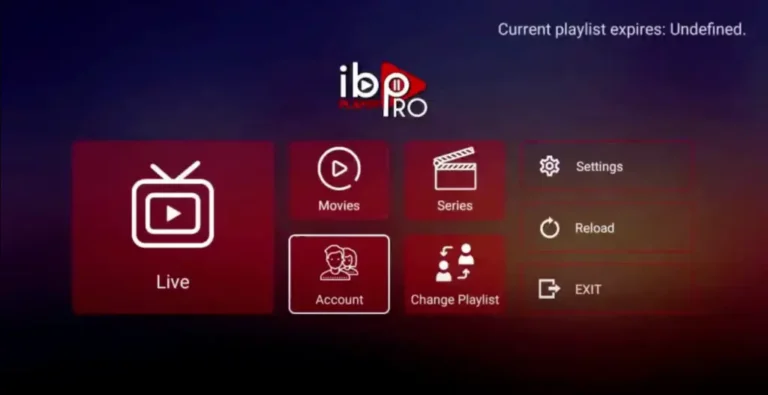
Step 1: Go to the Roku Channel Store. Search for “IBO Player Pro.” Select “Add Channel” to install it.

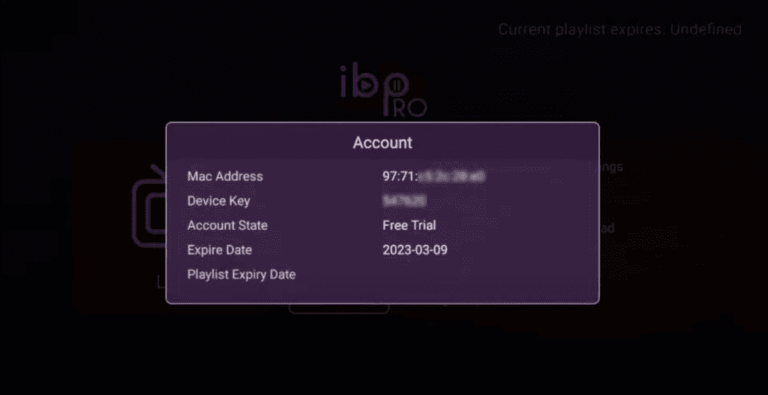
Step 2: Open the App and Click on “Account” to see an activation screen displaying a unique activation code (MAC Address and Device Key).
Note
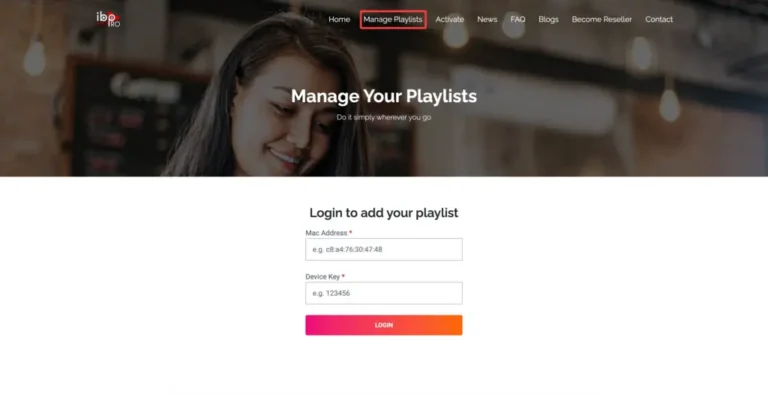
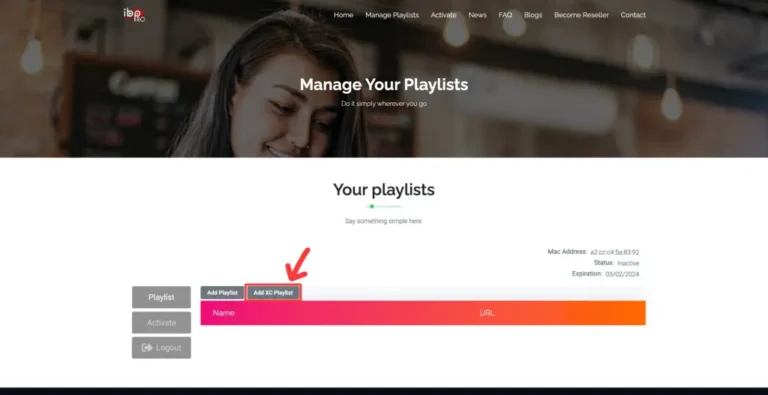
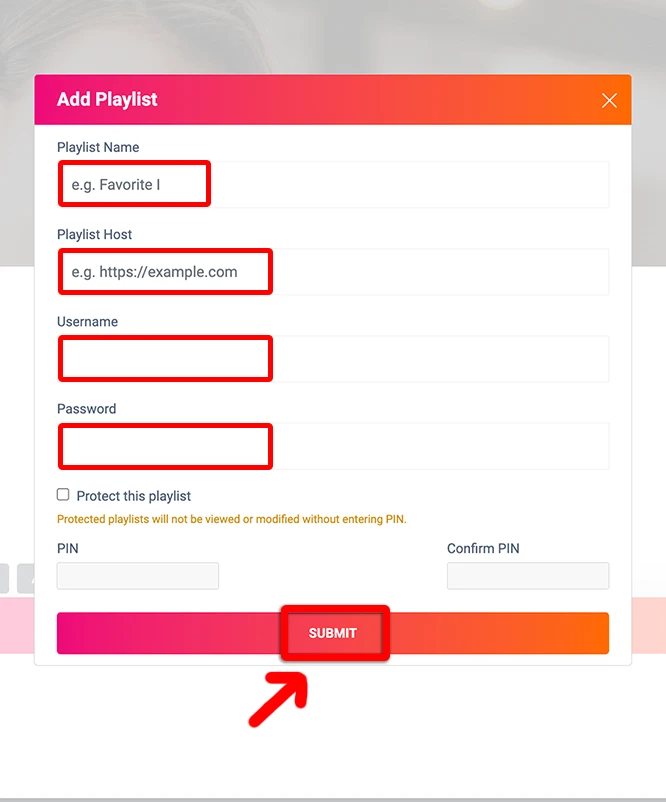
The app has a 7-day trial period; when it expires, go to https://iboproapp.com/manage-playlists, Log in with the MAC Address and Device Key from your app, then pay the one-time fee.